PeakLab
v2 Documentation Contents
R2N
Software Home
R2N
Software Support
Database Numeric Summary Export
Export Information
There are three File menu options in the Numeric
Summary window of the PeakLab fit Review.
Each will use an consistent export format that follows the layout of the Numeric
Summary when all information is displayed. While these options are primarily for PeakLab's database
functionality, they can also be used for external databases. These exports contain all peak
information. There is no option to export only partial information.
Export Fit(s) to CSV or Parquet File...
This Export Fit(s) to CSV or Parquet File... Numeric
Summary menu option writes the ASCII CSV file or the Parquet format file that is used for PeakLab's
internal databases. It is used for an ASCII export that can be imported into Excel or any independent
database. In the main PeakLab folder (c:\PeakLab by default), there will be a Database subfolder folder
where the SQL schema are stored in you wish to import the data into your own SQL database. There is only
the full data option which will consist of all of the close to 300 fields in the extract. All except the
last hash field used for the runid in the database will be output in the Numeric
Summary when Select All is used.
Export Fit(s) to &Database...
The Export Fit(s) to &Database... Numeric
Summary menu option writes the current fit to the database of your choice. This is the only option
that adds the current fit information to a database. You can select any existing PeakLab .duckdb database
on your system, or if a name is specified that does not exist, a new database will be created and populated.
Convert Database to CSV or Parquet...
The Convert Database to CSV or Parquet... Numeric
Summary menu option is a utility function that will convert any PeakLab database to a CSV or Parquet
file. This converts the entire contents of the specified duckdb file to the CSV or parquet file. The parquet
file will compressed and much smaller in size. This option allows you to export any of these duckdb databases
in a single conversion to either of these portable formats.
The PeakLab Database for Numeric Peak Information
PeakLab uses the python implementation of the duckdb SQL database for storing its fit information. Each
duckdb database is a high-speed SQL database that resides in a single easily accessible and fully visible
file of your choosing. In PeakLab, you can have as many databases as you wish, and each will exist as
a single binary .duckdb file with the name and folder location you choose. These duckdb databases require
zero configuration and you should find them incredibly fast for complex queries. There are many apps and
python libraries that interface with duckdb files. Here is a brief list of the free tools (as furnished
by Gemini):
Python Libraries (For Data Science & Integration)
DuckDB Native API: The official, dependency-free Python client for direct SQL execution. https://duckdb.org/docs/api/python/overview
Pandas Integration: Documentation on how DuckDB effortlessly bridges SQL queries directly into
Pandas DataFrames. https://duckdb.org/docs/guides/python/relational_api_pandas
Polars: A lightning-fast, Rust-based DataFrame library that shares native memory architecture with
DuckDB. https://pola.rs/
SQLAlchemy (duckdb-engine): The dialect driver that allows SQLAlchemy ORMs to connect to a .duckdb
file as if it were a traditional SQL server. https://github.com/Mause/duckdb_engine
Ibis: A unified Python dataframe API that uses DuckDB as its default execution engine. https://ibis-project.org/
Graphical Explorers & UIs (For Visualizing the Data)
Tad: A fast, desktop-based pivot table and CSV/Parquet/DuckDB viewer designed specifically for
data engineers and scientists. https://www.tadviewer.com/
Harlequin: A terminal-based SQL IDE. It allows users to query DuckDB files using a beautiful interface
directly from the command prompt. https://harlequin.sh/
DBeaver Community Edition: A comprehensive, open-source universal database manager that natively
supports DuckDB connections via JDBC. https://dbeaver.io/
DuckDB Command Line
DuckDB CLI: The official, standalone 20MB executable that requires zero installation or dependencies
to query the binary files. https://duckdb.org/docs/api/cli/overview
Using AI with PeakLab Databases
Python
You can use any of the major AI engines if you have python installed on your machine and ask to have a
script written for you to do exactly what you want to extract, analyze, and visualize. Here is an example:
I have a DuckDB file from PeakLab, c:\PeakLab\Database\analytical_data.duckdb. Please write me a python
script that extracts all peaks where "CORR" appears anywhere in the title field, where "FID1B"
appears anywhere in the filesrc field, where "GenHVL" is in the pk_id field, and where the pk_a1
peak location is between 9.675 and 9.685 minutes. Please write a c:\PeakLab\Database\extract1.csv file
with the aforementioned search fields and the pk_a0, pk_a1, pk_a2, pk_a3, pk_a4, and pk_fracNL fields.
Please use the uploaded schema_duckdb.sql file to ensure there are no errors. Once the data is imported,
the python script should render a matplotlib grid plot consisting of four plots where the x axis is the
pk_a1 from the extract, and the four y axes will be the pk_a0, pk_a2, pk_a3, and the pk_fracNL from the
extract. Please produce both points and connected lines and fit each of the data in the plot to a straight
line and report the r^2 of the linear fit in the titles of each of the plots.
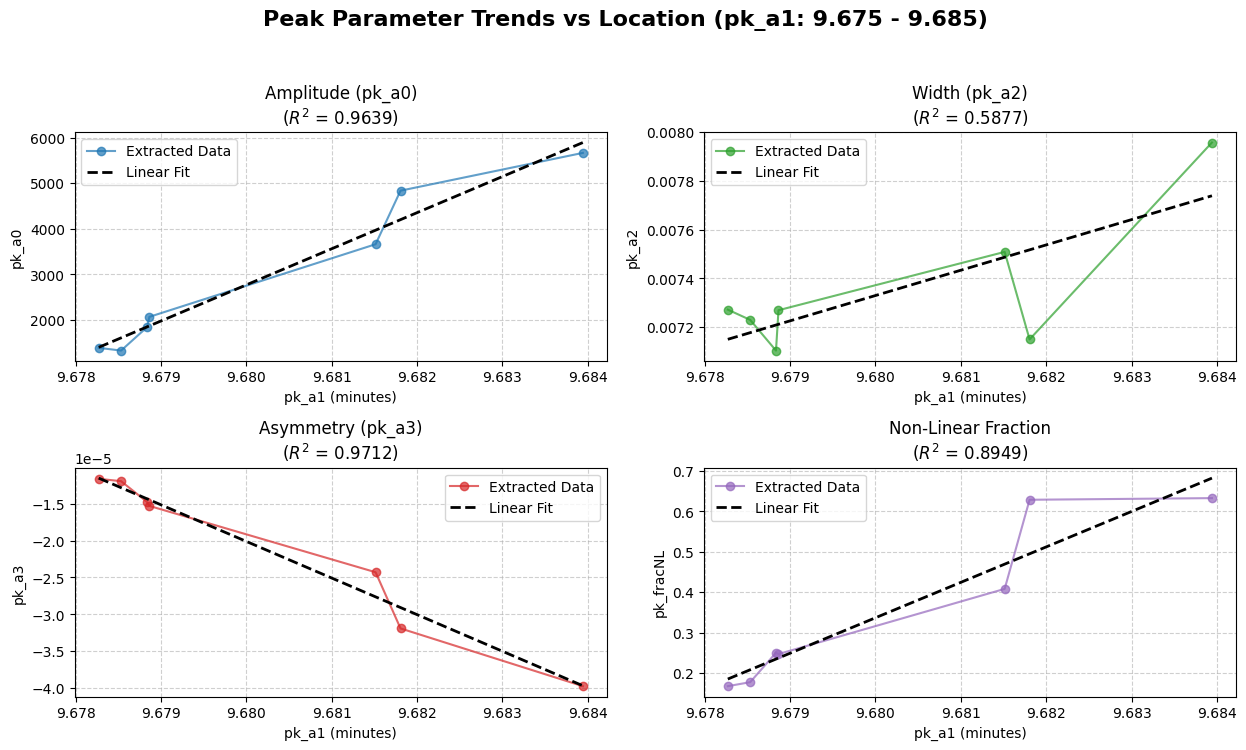
Use python when you need advanced visualization and complex analytics. Database viewers cannot calculate
statistics or build complex graphs. If you want publication-ready visualizations—like multi-panel plots,
linear regressions, or advanced statistical overlays—ask the AI to write a Python script using Matplotlib
or Seaborn. The AI will handle all the complex graphing math for you.
SQL Tools
AI can also write the SQL for data extraction using the other tools described above. You can use tools
like DBeaver or Tad when you want to explore the raw numbers. Ask the AI to write the SQL query for you.
This is best for finding specific runs, checking peak parameters in a spreadsheet format, or exporting
a simple CSV.